Vue3 MultiSelect
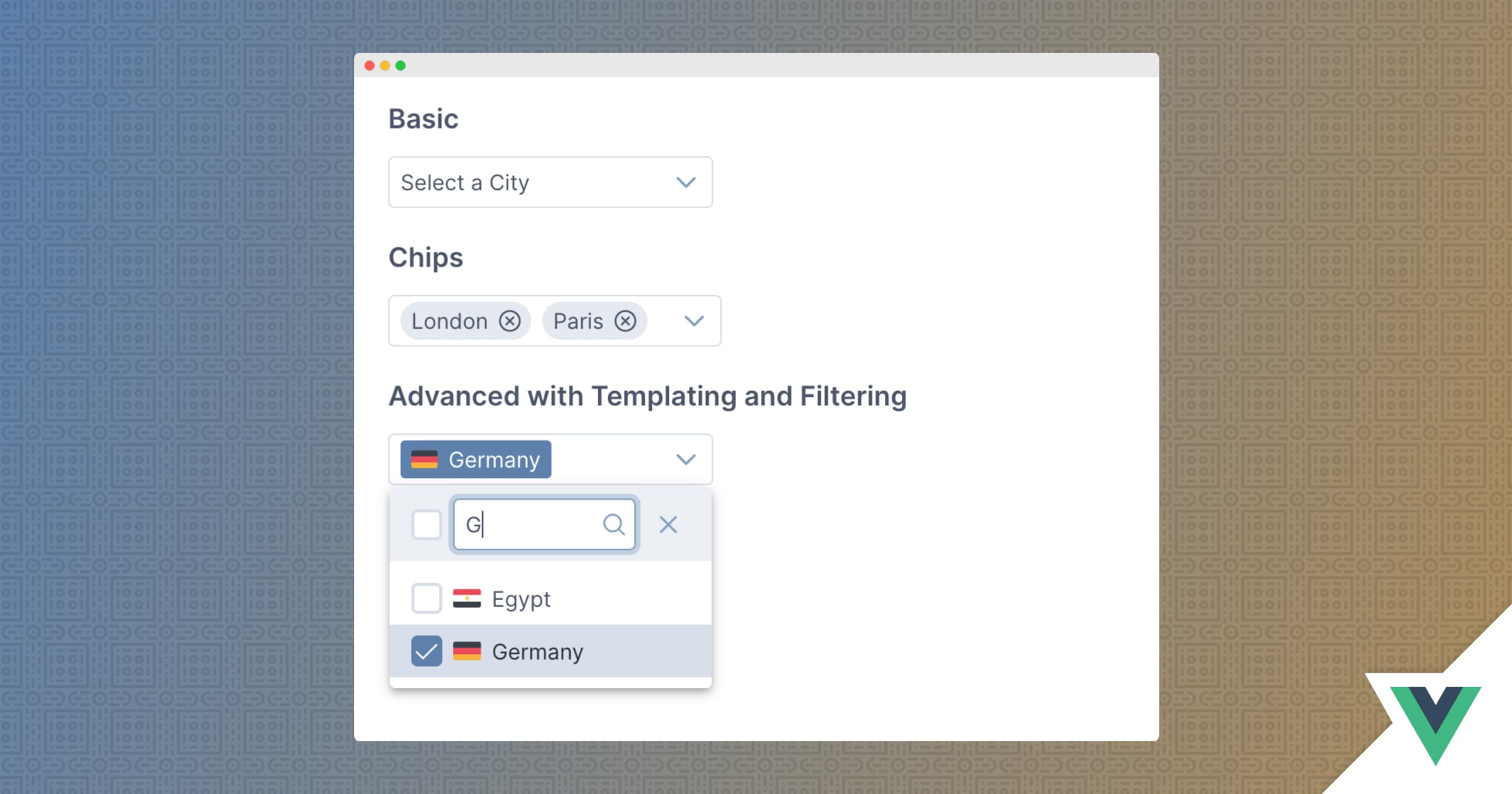
Vue MultiSelect is used to multiple values from a list of options. It supports Vue 3 with PrimeVue 3 and Vue 2 with PrimeVue 2.
Setup
Refer to PrimeVue setup documentation for download and installation steps for your environment such as Vue CLI, Vite or browser.
Import
import MultiSelect from 'primevue/multiselect';
Getting Started
MultiSelect requires a value to bind and a collection of arbitrary objects along with the optionLabel property to specify the label property of the option.
<MultiSelect v-model="selectedCities1" :options="cities" optionLabel="name" placeholder="Select a City" />
data() {
    return {
        selectedCities1: null,
        selectedCities2: null,
        cities: [
                {name: 'New York', code: 'NY'},
                {name: 'Rome', code: 'RM'},
                {name: 'London', code: 'LDN'},
                {name: 'Istanbul', code: 'IST'},
                {name: 'Paris', code: 'PRS'}
        ],
        countries: [
                {name: 'Australia', code: 'AU'},
                {name: 'Brazil', code: 'BR'},
                {name: 'China', code: 'CN'},
                {name: 'Egypt', code: 'EG'},
                {name: 'France', code: 'FR'},
                {name: 'Germany', code: 'DE'},
                {name: 'India', code: 'IN'},
                {name: 'Japan', code: 'JP'},
                {name: 'Spain', code: 'ES'},
                {name: 'United States', code: 'US'}
        ]
    }
}
Chips Display
A comma separated list is used by default to display selected items whereas alternative chip mode is provided using the display property to visualize the items as tokens.
<MultiSelect v-model="selectedCities2" :options="cities" optionLabel="name" placeholder="Select a City" display="chip"/>
Custom Content
Label of an option is used as the display text of an item by default, for custom content support define an option template that gets the option instance as a parameter.
In addition the value template can be used to customize the selected values display instead of the default comma separated list.
<MultiSelect v-model="selectedCountries" :options="countries" optionLabel="name" placeholder="Select Countries" :filter="true" class="multiselect-custom">
    <template #value="slotProps">
        <div class="country-item country-item-value" v-for="option of slotProps.value" :key="option.code">
            <img src="../../assets/images/flag_placeholder.png" :class="'flag flag-' + option.code.toLowerCase()" />
            <div>{{option.name}}</div>
        </div>
        <template v-if="!slotProps.value || slotProps.value.length === 0">
            Select Countries
        </template>
    </template>
    <template #option="slotProps">
        <div class="country-item">
            <img src="../../assets/images/flag_placeholder.png" :class="'flag flag-' + slotProps.option.code.toLowerCase()" />
            <div>{{slotProps.option.name}}</div>
        </div>
    </template>
</MultiSelect>
Filter
Filtering allows searching items in the list using an input field at the header. In order to use filtering, enable the filter property.
<MultiSelect v-model="selectedCities1" :options="cities" :filter="true" optionLabel="name" placeholder="Select a City" />
Theming
MultiSelect supports various themes featuring Material, Bootstrap, Fluent as well as your own custom themes via the Designer tool.
Resources
Visit the PrimeVue MultiSelect showcase for demos and documentation.


