Angular SlideMenu
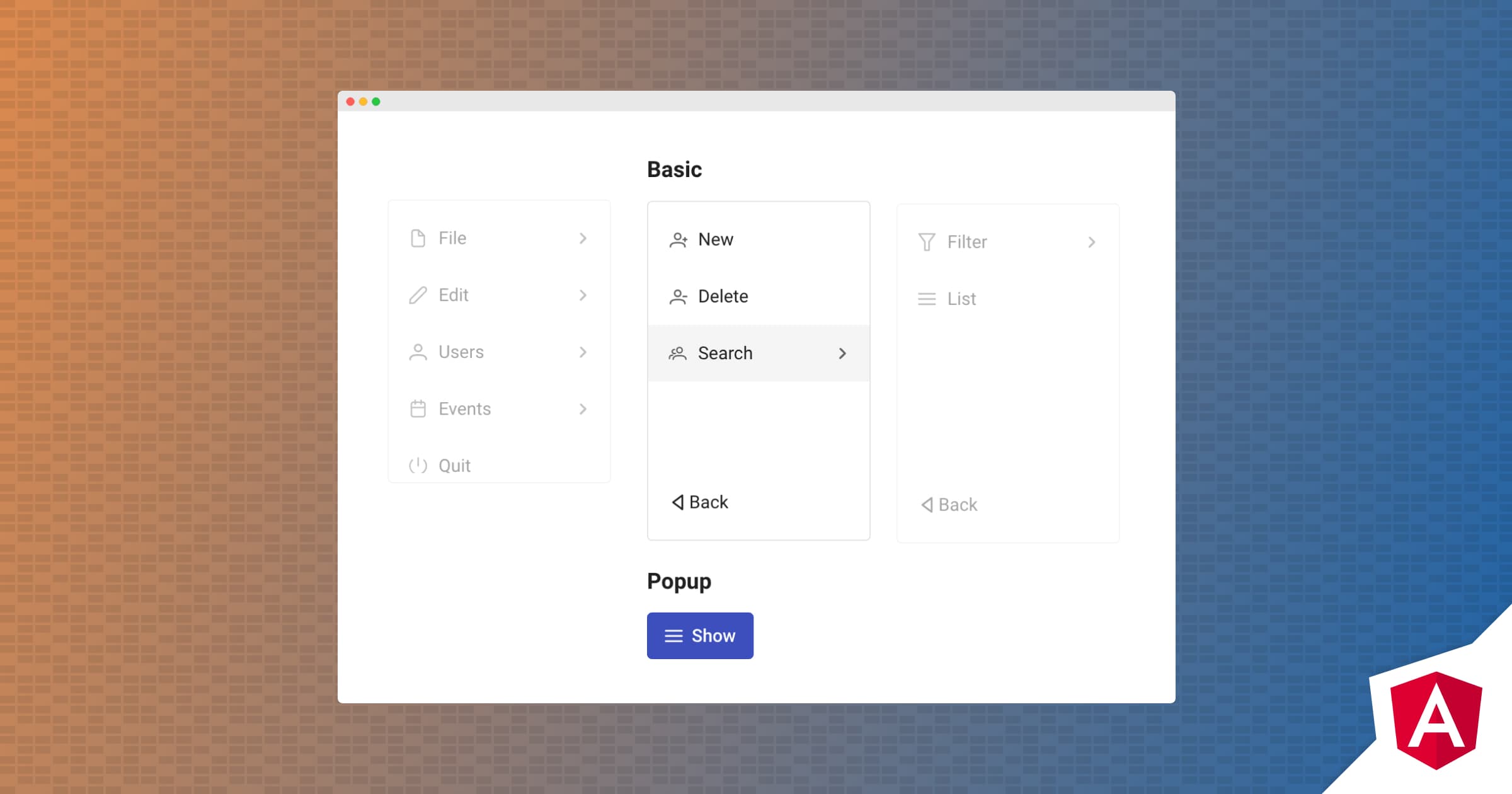
Angular SlideMenu displays submenus with slide animation.
Setup
Refer to PrimeNG setup documentation for download and installation steps for your environment.
Import
import {SlideMenuModule} from 'primeng/slidemenu';
import {MenuItem} from 'primeng/api';
MenuModel API
SlideMenu uses the common menumodel api to define its items, visit MenuModel API for details.
Getting Started
SlideMenu requires nested menuitems as its model.
<p-slideMenu [model]="items"></p-slideMenu>
export class SlideMenuDemo {

    items: MenuItem[];

    ngOnInit() {
        this.items = [
            {
                label: 'File',
                items: [{
                        label: 'New',
                        icon: 'pi pi-fw pi-plus',
                        items: [
                            {label: 'Project'},
                            {label: 'Other'},
                        ]
                    },
                    {label: 'Open'},
                    {label: 'Quit'}
                ]
            },
            {
                label: 'Edit',
                icon: 'pi pi-fw pi-pencil',
                items: [
                    {label: 'Delete', icon: 'pi pi-fw pi-trash'},
                    {label: 'Refresh', icon: 'pi pi-fw pi-refresh'}
                ]
            }
        ];
    }
}
Popup Mode
SlideMenu is inline by default, popup mode is also supported by enabling popup property and calling toggle method by passing the event from the anchor element.
<p-slideMenu #menu [model]="items" [popup]="true"></p-slideMenu>
<button #btn type="button" pButton icon="pi pi-list" label="Show" (click)="menu.toggle($event)"></button>
Effects
The easing function to use is "ease-out" by default and this can be customized using easing property. See here for possible alternative values.
<p-slideMenu #menu [model]="items" effectDuration="1000" easing="ease-in"></p-slideMenu>
Animation Configuration
Transition of the open and hide animations can be customized using the showTransitionOptions and hideTransitionOptions properties, example below disables the animations altogether.
<p-slideMenu [showTransitionOptions]="'0ms'" [hideTransitionOptions]="'0ms'" #menu [model]="items" [popup]="true"></p-slideMenu>
<button #btn type="button" pButton icon="pi pi-list" label="Show" (click)="menu.toggle($event)"></button>
Theming
SlideMenu supports various themes featuring Material, Bootstrap, Fluent as well as your own custom themes via the Designer tool.
Resources
Visit the PrimeNG SlideMenu showcase for demos and documentation.


